

Forwarding overview
Beaconv0.0.32 added the Microsoft Sentinel content pack for teams that want Beacon endpoint events in Log Analytics and Sentinel hunting workflows. Beacon remains the local JSONL producer and writes one source of truth, the active runtime JSONL log. Something on the host tails that file and sends new records through a Data Collection Rule (DCR) into a custom Log Analytics table. There are two ways to do that, and both fill the same BeaconRuntime_CL table through the same transform:
On a desktop or server outside Azure, the Vector path is usually simpler.
Beacon’s
config.json never holds Azure values. On the Vector path, the forwarder keeps its settings and credential in a directory only root can read (SYSTEM and Administrators on Windows).
Runtime log paths
Use system mode for MDM deployments so Azure Monitor Agent can tail
/var/log/beacon-agent/runtime.jsonl without per-user home directory permissions.
Prerequisites
- Beacon endpoint installed and writing local JSONL.
- A Log Analytics workspace, with Microsoft Sentinel enabled if you want Sentinel hunting and analytics workflows.
- A custom Log Analytics table named
BeaconRuntime_CL. - For the Azure Monitor Agent path: AMA on the endpoint (Azure Arc first, outside Azure) and a DCR associated with it.
- For the Vector path: an Entra app registration and the Logs Ingestion DCR from the pack, and a system install of Beacon.
Install the Sentinel pack
Generate the Sentinel content pack for a managed system-mode deployment:Generate the Sentinel content pack for a managed system-mode deployment
README.mdwith setup and validation stepstable-schema.jsonfor theBeaconRuntime_CLcustom tabledcr-template.jsonfor Azure Monitor Agent custom text log collectiondcr-logs-ingestion-template.jsonandvector.tomlfor the Vector pathdcr-transform.kqlfor parsing each Beacon JSONL linequeries.kqlwith validation and starter hunting queriesdetections.kqlwith example analytics rule logicsample-event.jsonlwith Beacon endpoint sample events
--log-path /path/to/runtime.jsonl. The generated DCR template uses the selected path.
Sentinel setup
Set up Microsoft Sentinel ingestion from the Azure Portal. If Sentinel is already enabled for your Log Analytics workspace, skip the Sentinel enablement step.1. Enable Sentinel if needed
If the workspace does not already have Microsoft Sentinel enabled, open the Azure Portal, search for Microsoft Sentinel, click Create, select theagent-beacon-instance workspace, and click Add. Sentinel uses that Log Analytics workspace as its backend.
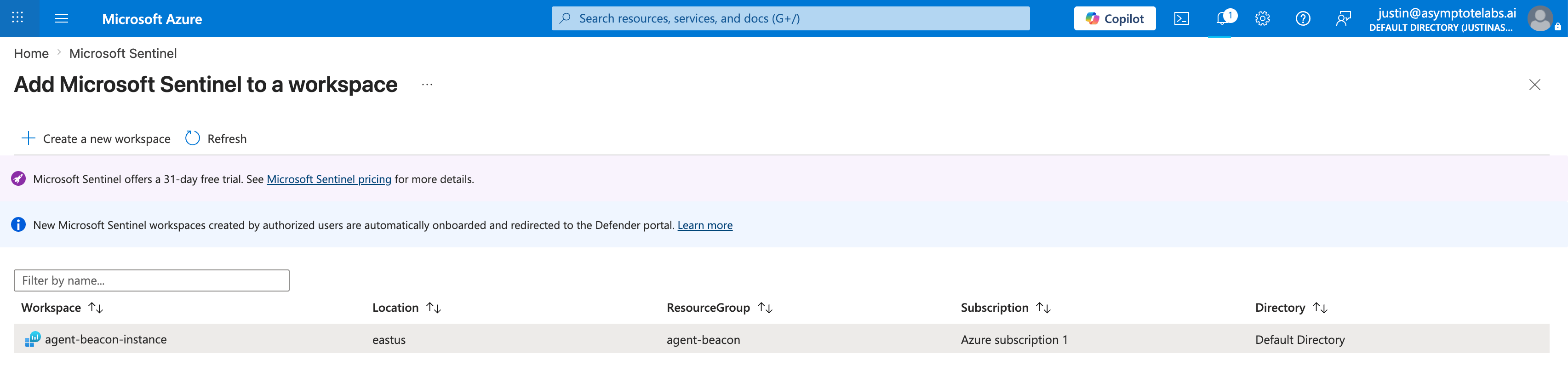
Select the Log Analytics workspace to add to Microsoft Sentinel.
2. Create the Data Collection Endpoint
Create a Data Collection Endpoint in the same region as the Log Analytics workspace. For the example workspace shown here, use:
If Azure says no Data Collection Endpoint exists during the custom log wizard, create this endpoint first, then return to the wizard.
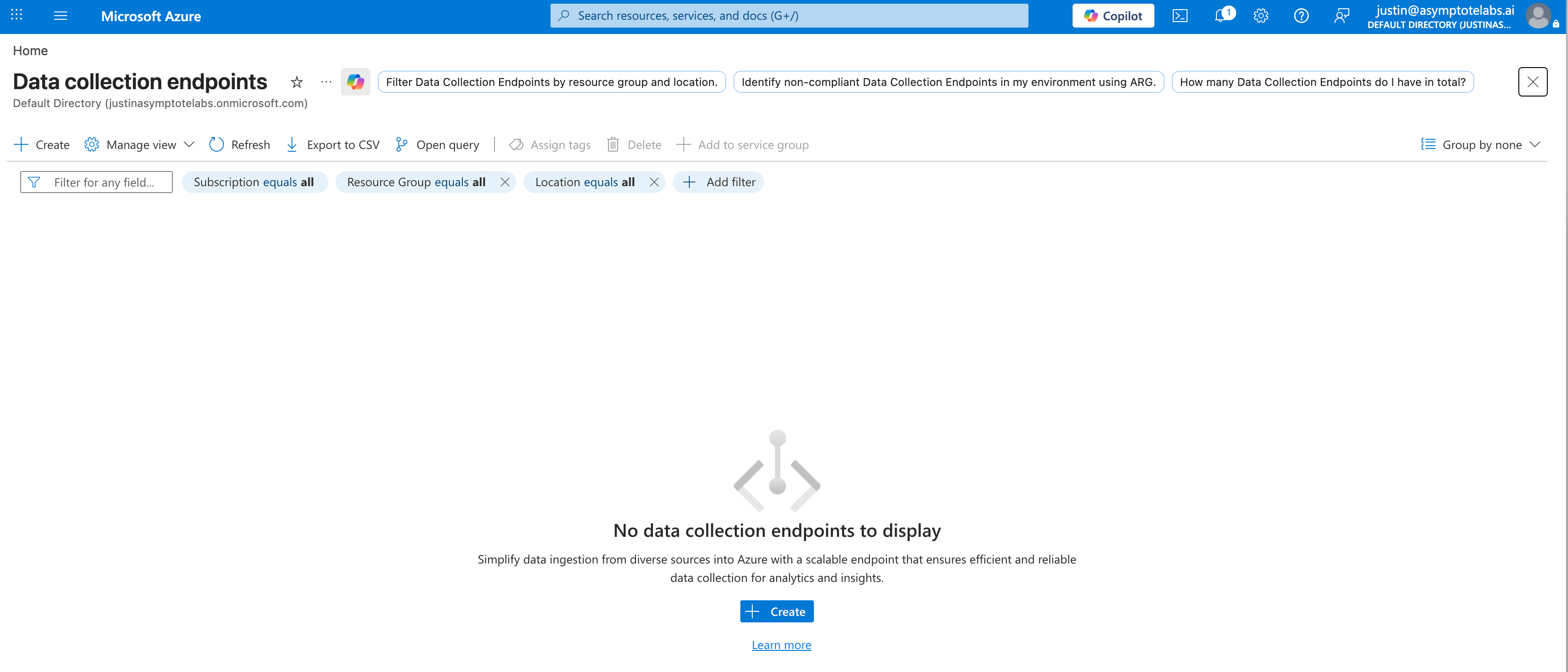
Open Data collection endpoints and create a new endpoint if none exists.
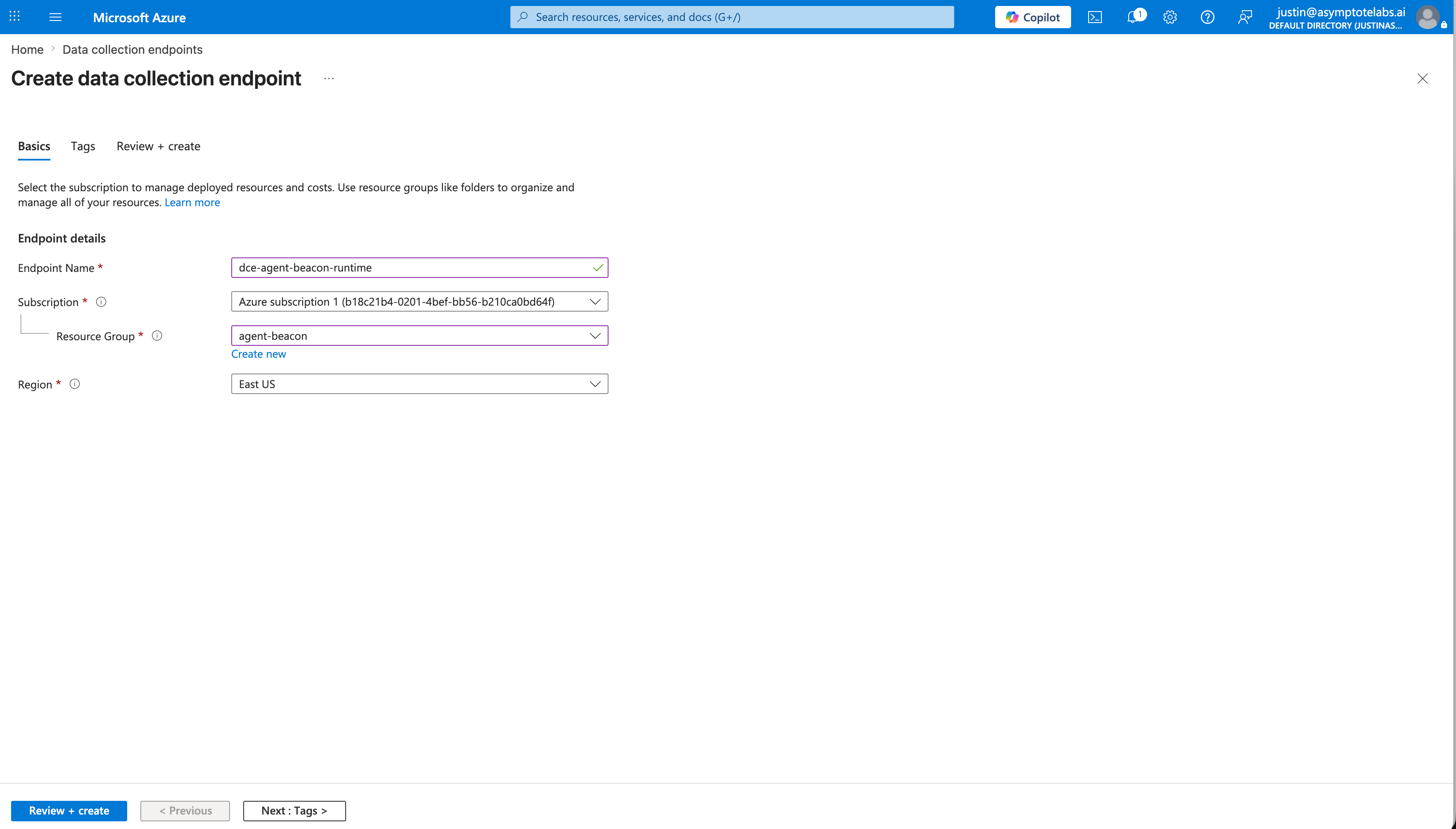
Create the Beacon Data Collection Endpoint in the workspace region.
3. Create the Beacon custom table
Open your Log Analytics workspace, such asagent-beacon-instance, then go to Settings > Tables. If you do not see Tables, use the search box inside the workspace left navigation and search for Tables.
Click Create > New custom log (DCR-based). Use:
Enter the table name as
BeaconRuntime, not BeaconRuntime_CL. Azure adds the _CL suffix automatically, so the final Log Analytics table is BeaconRuntime_CL. If you enter BeaconRuntime_CL, Azure may create BeaconRuntime_CL_CL.
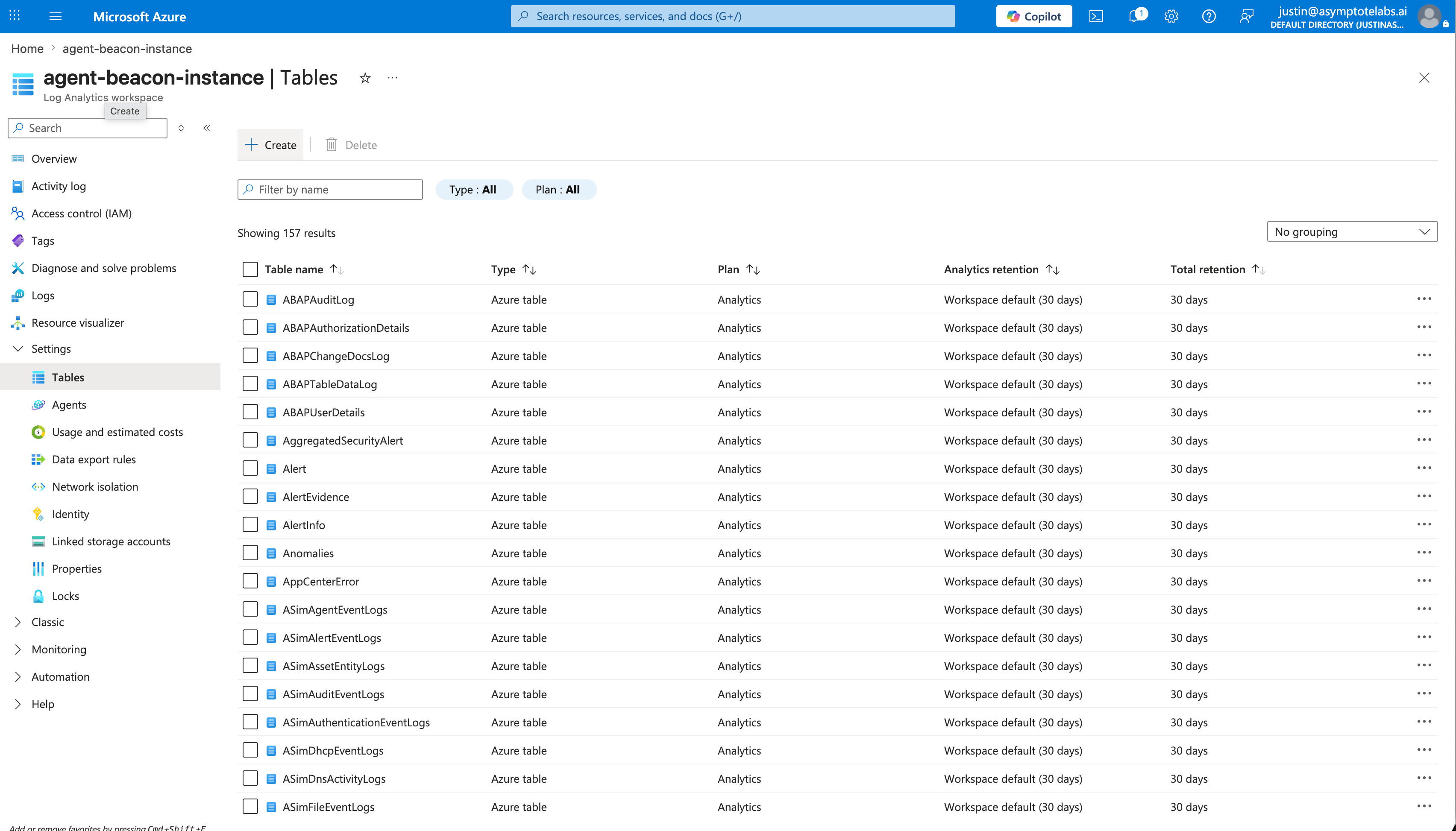
Open the Tables page in the Log Analytics workspace.
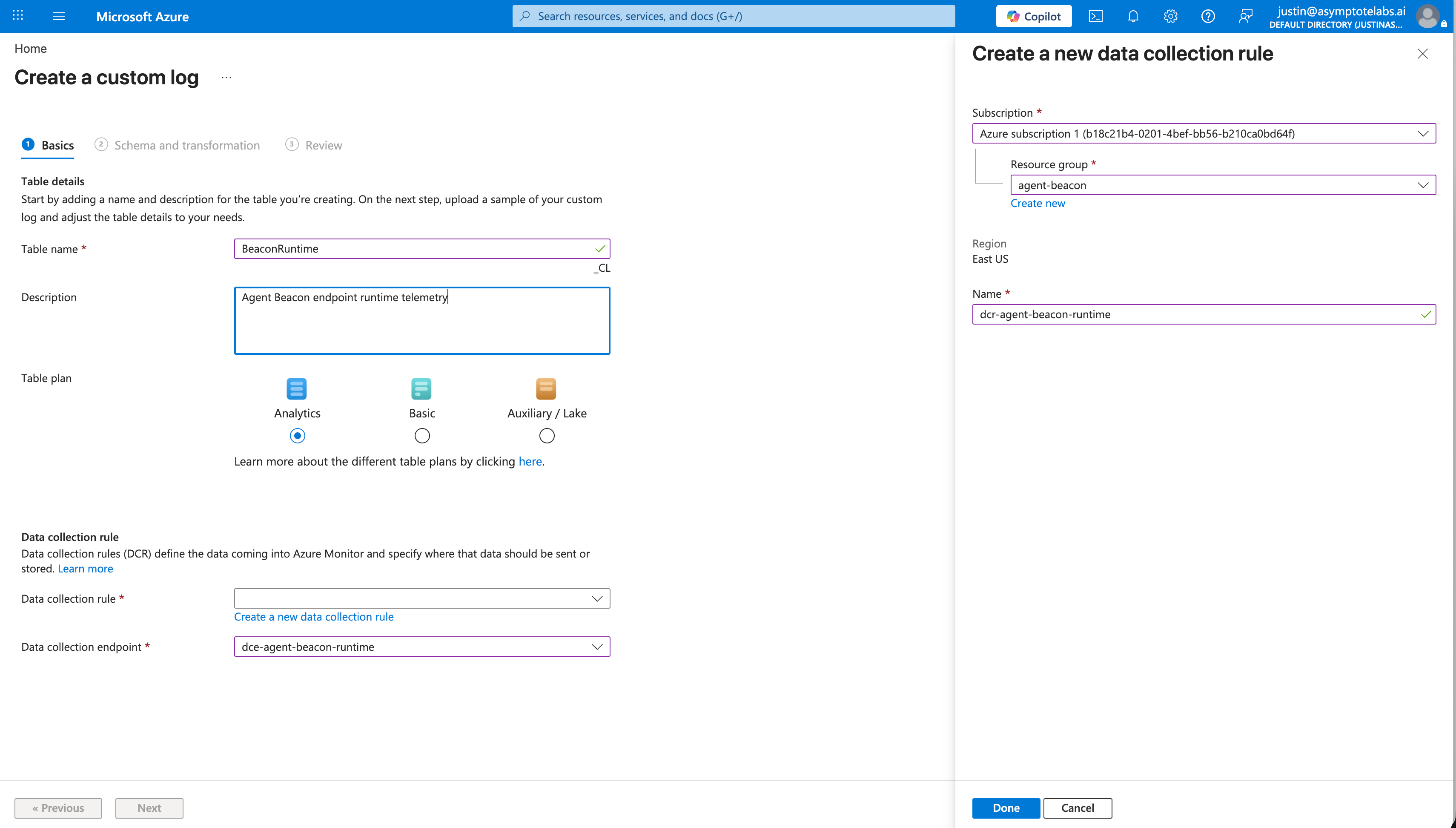
Create the Beacon custom log table and Data Collection Rule.
4. Configure schema and transformation
In the Schema and transformation step, uploadsample-event.jsonl from the generated Sentinel pack. Do not paste table-schema.json into the portal wizard; use it as the reference for the expected columns.
Paste the contents of dcr-transform.kql into the transformation editor and confirm the output columns match the table-schema.json schema. The key columns are:
The DCR uses Custom Text Logs because Beacon writes newline-delimited JSON. The transform parses each
RawData line with todynamic(RawData), projects common hunting columns, preserves the original Beacon event in RawData, and routes output to BeaconRuntime_CL.
5. Choose the ingestion path
Azure Monitor Agent does not run on macOS, so Macs use the Vector path. The signed macOS package installs Vector at/opt/beacon/bin/vector, just like the Linux packages.
For Azure Monitor Agent on Windows or Linux, install AMA on the machine, add a custom text log source pointing at the Beacon runtime log (usually /var/log/beacon-agent/runtime.jsonl), apply the Beacon DCR transform, route output to BeaconRuntime_CL, and associate the DCR with the machine. On an endpoint with restricted log access, AMA can read the log only if it runs as root (SYSTEM on Windows, its default) or its account is in the beacon-log group.
Azure Monitor Agent outside Azure
AMA is an Azure VM extension. On a machine that is not an Azure VM, you have to onboard it to Azure Arc (azcmagent connect) before AMA can be installed. That makes every endpoint an Azure resource, running the Connected Machine agent next to AMA. The DCE’s logs ingestion endpoint must be in the workspace’s region.
A host that cannot reach Azure at all cannot use either path.
Vector and the Logs Ingestion API
Vector readsruntime.jsonl and posts each line to the Logs Ingestion API with a Microsoft Entra app registration. It needs no Arc, no AMA, and no Azure resource per machine. Vector ships with Beacon on all three platforms: the macOS package and the Linux .deb and .rpm install it at /opt/beacon/bin/vector, and the Windows MSI installs vector.exe beside beacon.exe. beacon endpoint sentinel forwarder install runs it as a system service, so one command sets up forwarding the same way on every machine.
Each record carries the original Beacon line as RawData. The Logs Ingestion DCR runs the same transform as the AMA path, so the rows are identical either way.
1. Azure side, once
-
Create the
BeaconRuntime_CLtable as in step 3 above. -
Deploy
dcr-logs-ingestion-template.jsonfrom the pack with the workspace resource ID, and note thedcrImmutableIdoutput. Then read the DCR’s logs ingestion URL:You need a Data Collection Endpoint only for Private Link. Pass its resource ID asRead the DCR's logs ingestion URLdataCollectionEndpointResourceIdand use its logs ingestion URL instead. - Register an app in Microsoft Entra ID and give it a certificate. A client secret also works, but Microsoft recommends a certificate for production.
- On the DCR, grant the app the Monitoring Metrics Publisher role. A new role assignment can take up to 30 minutes to apply; the forwarder keeps retrying until it does.
2. Each host
Run this as root, or from an elevated shell on Windows. A fleet tool running asLocalSystem works too.
--client-certificate and pass the secret on stdin with --client-secret-stdin, or in AZURE_CLIENT_SECRET. The credential is never a command-line argument.
The command:
- Copies the certificate, its password or the secret into
forwarders/sentinelunder the endpoint’s system directory (/etc/beacon/endpointon Linux,/Library/Application Support/Beacon/Endpointon macOS,C:\ProgramData\Beacon\Endpointon Windows). Only root can read that directory, or SYSTEM and Administrators on Windows. You can delete your own copy of the certificate afterwards. - Writes Vector’s config with the values in it and has Vector check it. If Vector rejects it, nothing changes, and a forwarder that was already running keeps running as it was.
- Starts Vector as a service that restarts on failure and after a reboot:
BeaconSentinelForwarderon Windows,beacon-sentinel-forwarder.serviceon Linux, andcom.beacon.endpoint.sentinel-forwarderon macOS.
--read-from end to skip what is already in the log.
The host needs outbound HTTPS to login.microsoftonline.com and to the DCR’s *.ingest.monitor.azure.com hostname. For Azure Government or another sovereign cloud, pass its Entra authority with --authority-host, such as https://login.microsoftonline.us.
Operate the forwarder
Check it
beacon endpoint status --system shows the same service state. Vector’s own warnings and errors are in forwarders/sentinel/logs/vector-<date>.log under the endpoint’s system directory; install, repair and upgrades delete files over a week old.
- To change a setting or rotate the credential, run
forwarder installagain with the new values. - Repair and package upgrades keep the forwarder. An upgrade restarts it on the new package’s Vector.
- Uninstall removes the service. A non-purge uninstall (
--keep-config, or a Windows MSI removal withoutBEACON_PURGE=1) keeps its settings, so installing Beacon again brings it back.beacon endpoint sentinel forwarder remove --systemdeletes the settings and credential too. - With restricted log access, nothing changes: the forwarder runs as root or SYSTEM and can read the log.
401/403 answers without a limit. An outage or a role assignment that has not applied yet holds lines back rather than dropping them. After a crash some lines can be sent twice. Every row’s RawData carries the event’s event.id, so you can remove duplicates in a query.
One case is not retried. When Microsoft Entra ID refuses the credential itself, because the tenant or client ID is wrong or the certificate or secret has expired or been removed, Vector drops the batches it cannot get a token for, and status shows Entra’s error. Lines written while the credential is refused are not sent. Renew the certificate or secret before it expires, and run forwarder install again with the new one.
Run Vector yourself
vector.toml in the pack is the same config for running Vector under your own service manager, with the values taken from its environment: BEACON_SENTINEL_DCE_ENDPOINT (the logs ingestion URL), BEACON_SENTINEL_DCR_IMMUTABLE_ID, AZURE_TENANT_ID, AZURE_CLIENT_ID and AZURE_CLIENT_SECRET. If you already run it that way, stop that service before you install the managed forwarder, or every line is sent twice.
Who ran each session
On a machine several people use, the person behind an event is inRawData.user: uid is the account’s uid, or its SID on Windows, and name its name. Hook and plugin events carry it, because each hook and plugin runs as the person who ran the agent; with restricted log access the operating system vouches for it. Events from an agent’s own OpenTelemetry export, such as Claude Code’s token usage and cost, carry the collector’s own account instead (such as root, or the machine account COMPUTERNAME$ on Windows), because every account sends to the same local port. Claude Cowork is the exception: its events name the cloud account it reports. Both kinds share the session’s id, so take the person from the hook and plugin events, and keep an event’s own user where its session has none:
Attribute every event to the person who ran its session
RawData.raw.attributes["user.email"] and ["user.account_uuid"]. That names the Claude account rather than the operating system login.
The generated table schema includes columns such as Vendor, Product, EventAction, Severity, HostName, UserName, HarnessName, SessionId, ToolName, CommandLine, Repository, Branch, Message, and RawData.
Validate forwarding
Confirm the Beacon runtime log exists and has recent endpoint events:Confirm the Beacon runtime log exists and has recent endpoint events
Write a Sentinel validation event
beacon endpoint sentinel forwarder status --system, which shows Vector’s last warning, and confirm the app has Monitoring Metrics Publisher on the DCR. Role assignments can take several minutes to apply. The target table must exist before the DCR can route transformed records to it.
Hunting content
Usequeries.kql for validation and starter hunting queries, including recent Beacon events, command execution, sensitive file edits, high tool-call volume, and new or rare agent runtimes.
Use detections.kql as example analytics rule logic. Review and tune thresholds, repository names, content handling policy, and severity mappings before enabling alerts in production.
CEF, syslog, and direct APIs
Microsoft Sentinel can also collect CEF and Syslog through Azure Monitor Agent, but the generated Beacon pack uses custom logs because Beacon events are rich structured JSON with prompts, tool calls, commands, files, runtime metadata, and optional raw fields. Flattening those events into CEF loses useful context. Beacon’sconfig.json never holds Azure values. The managed forwarder keeps its settings and credential in its own directory, readable only by root, or by SYSTEM and Administrators on Windows. Vector does the batching and retries.
Content handling
Beacon applies redaction, sanitization, truncation, and event-size limits before events are written toruntime.jsonl and forwarded to Microsoft Sentinel. Review workspace access, table retention, analytics rules, and downstream consumers so retained telemetry matches your approved collection policy.
Related
Jamf and Sentinel
Roll Beacon out to Macs with Jamf Pro and forward runtime events to Sentinel.
Workspace ONE and Sentinel
Roll Beacon out to Windows machines with Workspace ONE and forward runtime events to Sentinel.
beacon endpoint sentinel
Review Microsoft Sentinel command syntax, flags, and examples.
Log forwarding
Review forwarding patterns across Wazuh, Splunk HEC, Falcon LogScale, Elastic, Datadog, Sumo Logic, Rapid7, Microsoft Sentinel, and customer-managed pipelines.
Endpoint event schema
Review normalized Beacon JSONL fields and example events.
Agent harness integrations
Review supported agent harnesses, deployment modes, storage, and forwarding.